
Track Info Display
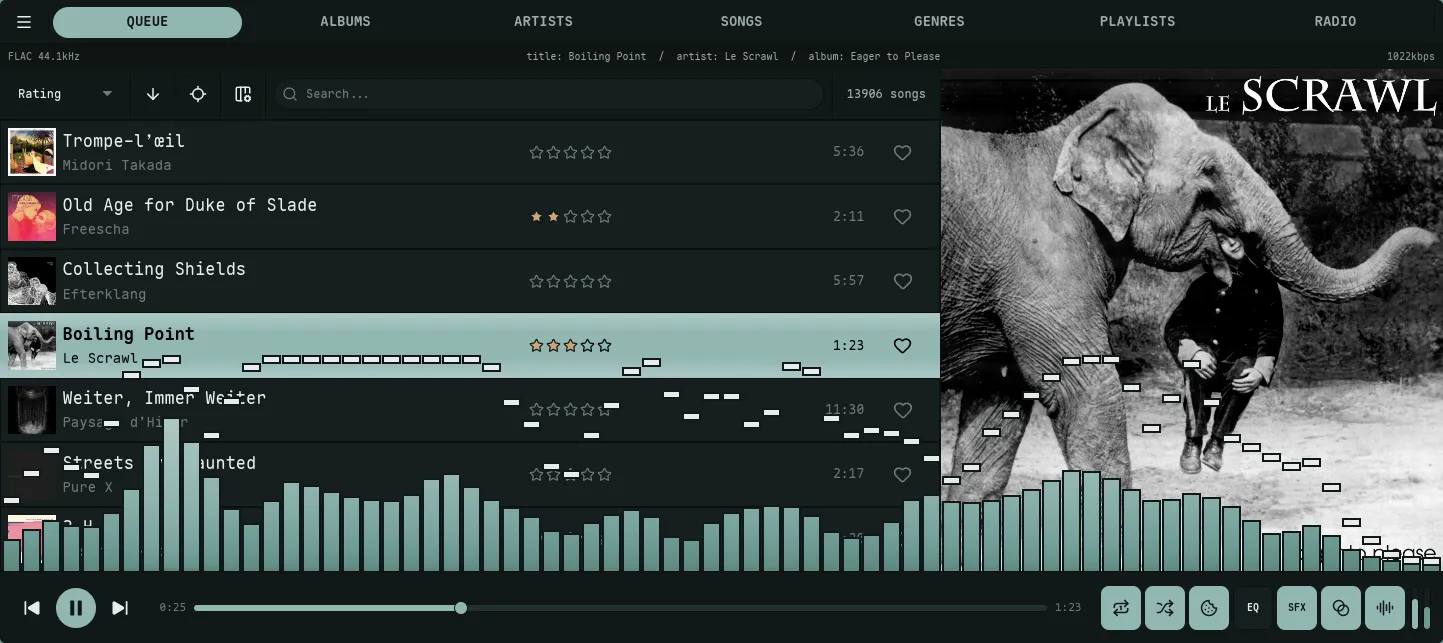
The now-playing metadata strip — title, artist, album, and the track’s format — can sit in a few different places, set by track_info_display. Default is mini_player; the others drop it as a strip in the bottom player bar, tuck it into the chrome, or hide it to give the list and artwork the whole window.
Artwork, metadata, and transport merge into one bar topped by a full-width progress scrub that shows elapsed and total time alongside the track’s format and bitrate. On a wide window it spreads into three sections — metadata on the left, transport centered, modes and volume on the right. As the window narrows it folds into a single compact cluster with the mode toggles tucked behind a kebab (⋮) menu.
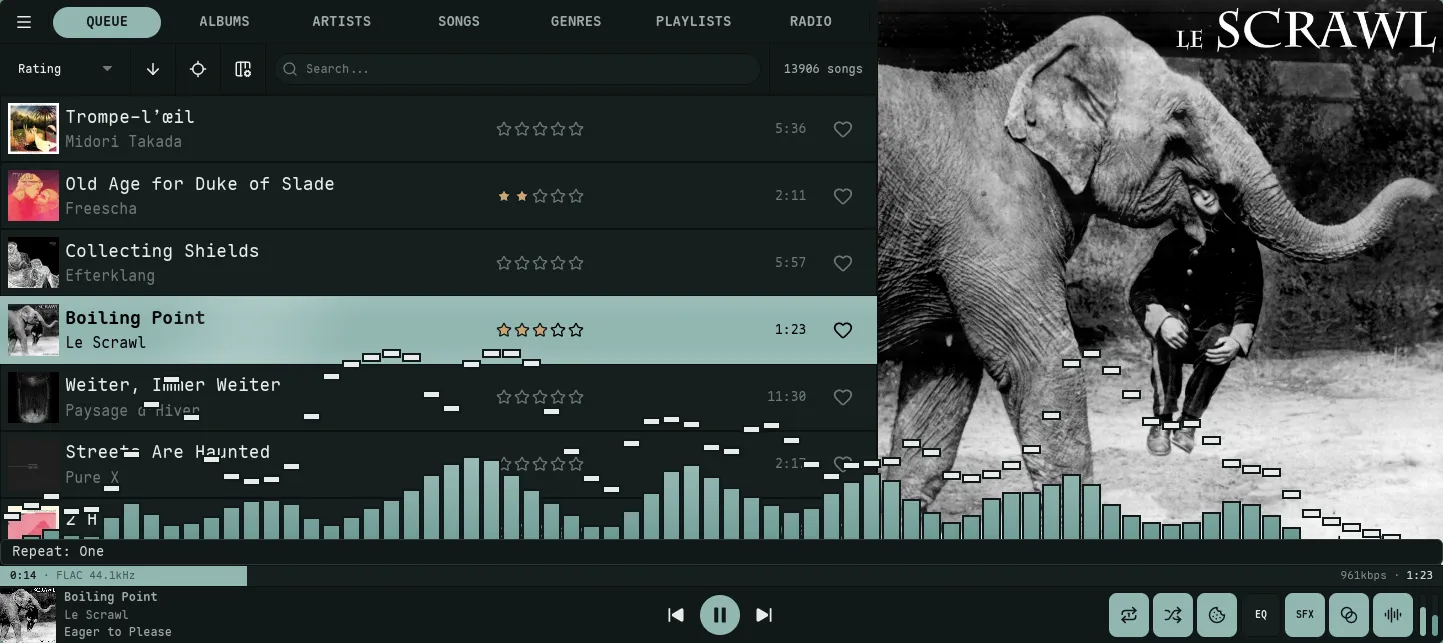
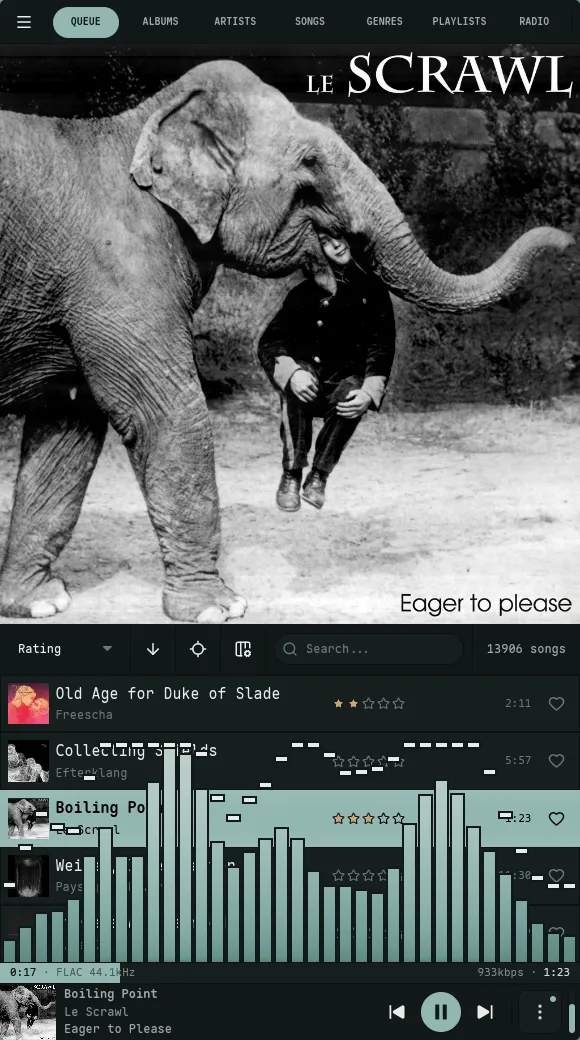
Hide the volume slider or the mode toggles independently with mini_player_show_volume and mini_player_show_modes.
The metadata sits as a strip in the bottom player bar, just below the transport row.
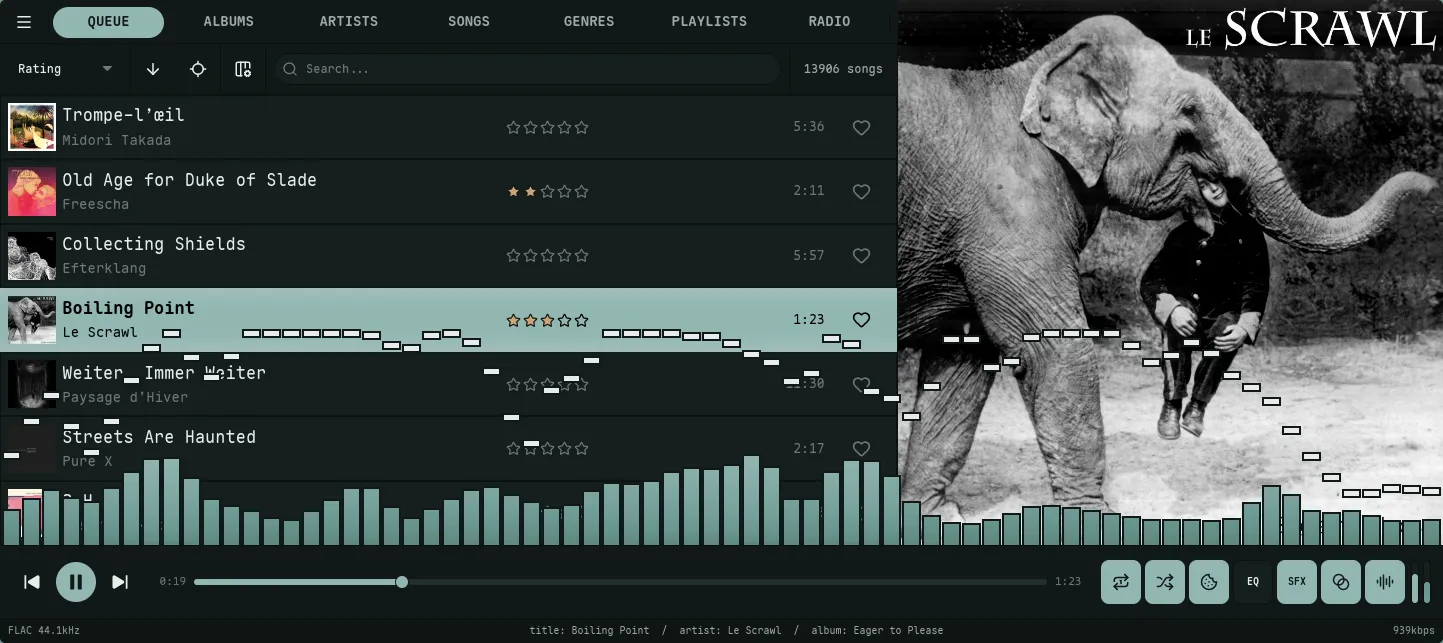
The metadata rides inline in the top navigation row, to the right of the view tabs. In side-nav or no-nav layouts it sits as its own row above the slot list instead.
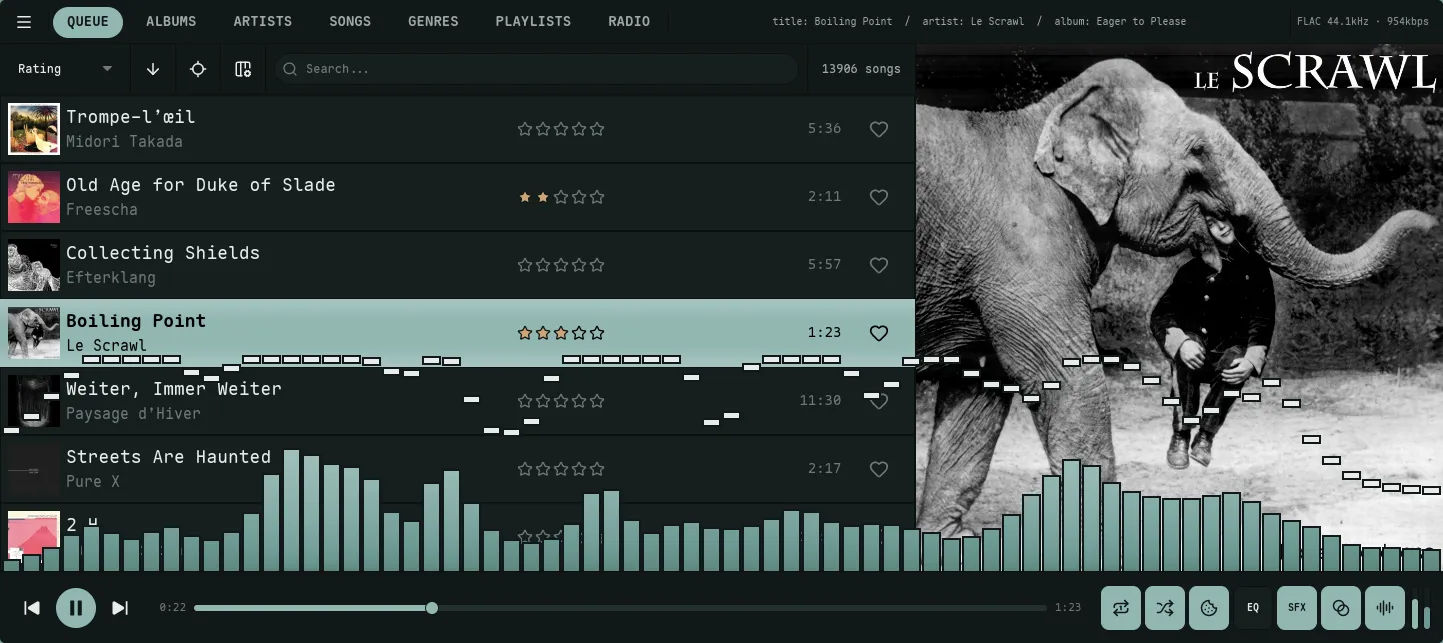
The metadata gets its own full-width row directly beneath the top navigation bar.
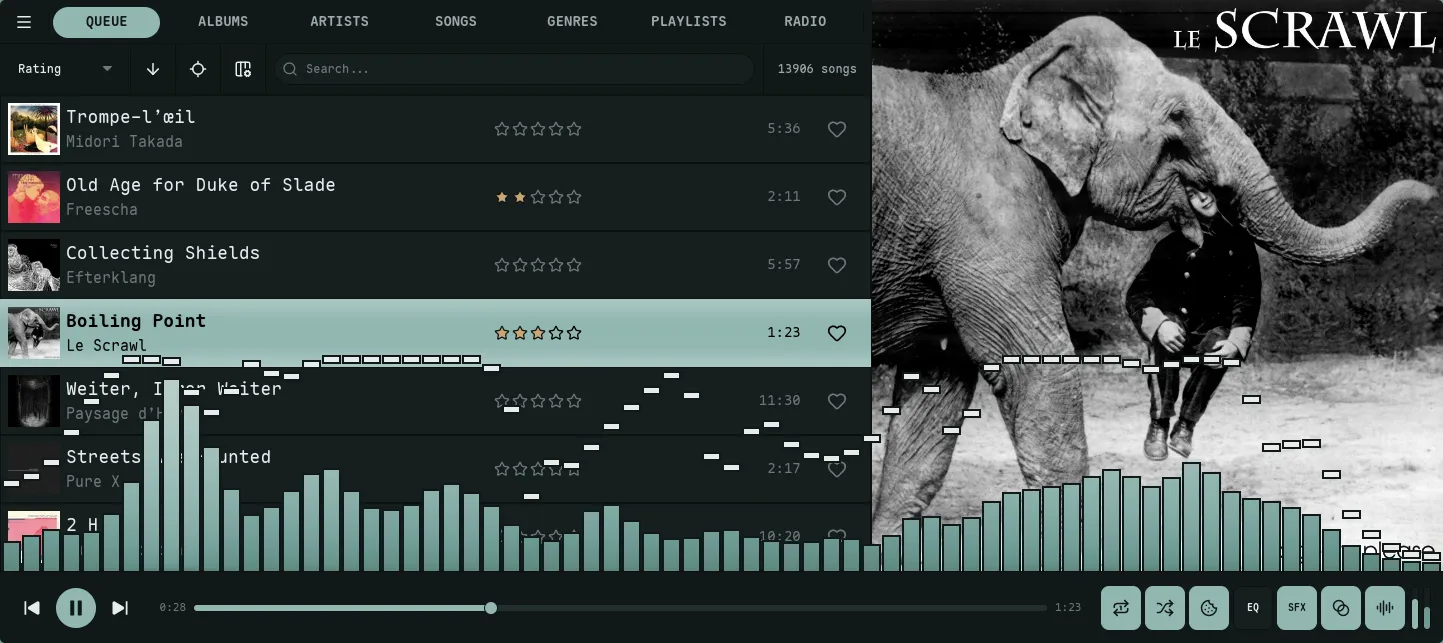
No metadata strip — the list and artwork get the full window.
Which fields the strip shows, and whether they carry title: / artist: / album: labels, is controlled by the strip_show_* keys in the configuration reference.
Bit-Perfect Status Badge
Section titled “Bit-Perfect Status Badge”When bit-perfect output is engaged, the now-playing strip carries a small badge reporting the real state of your sound card’s clock — read from /proc/asound, not the rate nokkvi requested. It shows only while bit-perfect output is in Strict or Relaxed mode and a local track is playing; radio is excluded, since a network stream can’t be bit-perfect.

| Badge | Meaning |
|---|---|
BIT-PERFECT | The device is clocked at the track’s sample rate. Audio is reaching the DAC untouched — no resampling, no DSP. |
RESAMPLED→96k | The device is locked at a different rate (shown in kHz — e.g. →96k), so PipeWire is resampling. When it can, the badge appends the app holding the device at that rate (RESAMPLED→96k · Zen), so you know what to close. |
UNVERIFIED | Nokkvi can’t read the device clock. Usually a Bluetooth sink (which re-encodes the audio, so bit-perfect isn’t possible) or an idle / suspended device. |
A brief blank moment right as a track starts is normal — nokkvi waits for the device to settle before committing to a state, so it won’t flash a false UNVERIFIED. In Relaxed mode the badge also drops for the duration of a same-rate crossfade — the overlapping blend isn’t bit-perfect — and returns once the next track settles.