Playlists
The Playlists view shows every playlist on your Navidrome server. Click a playlist to expand its tracks inline, or right-click for the full set of actions.
For navigation, search, multi-select, ratings, and shared right-click actions, see Library Basics. For artwork panel sizing, see Artwork & Performance.
Browsing
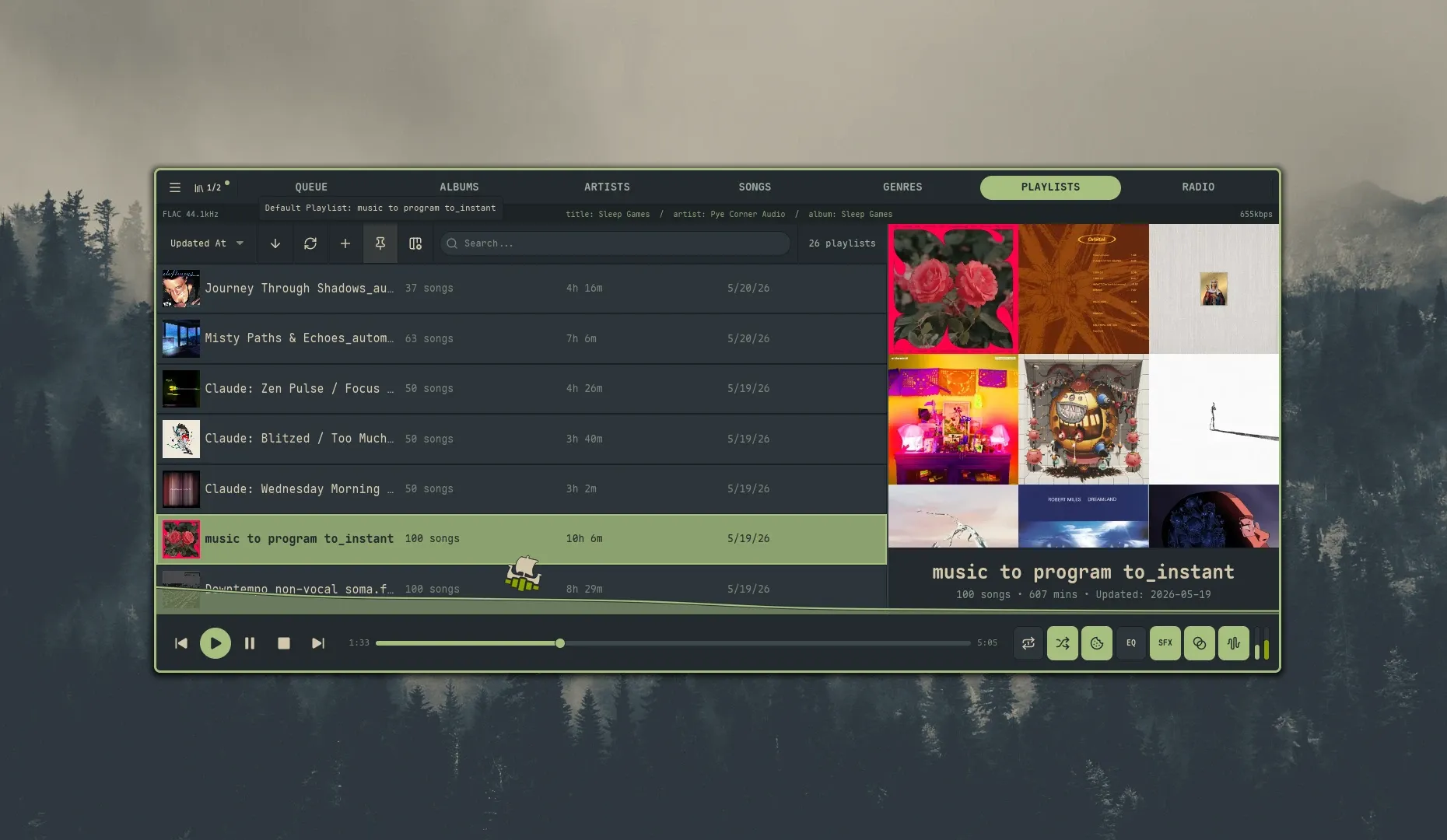
Section titled “Browsing”Each playlist row shows its cover art — a 2×2 quad of the first distinct album covers — and its name. Song count and duration are optional columns (off by default; toggle them from the columns gear, or they auto-show when you sort by that field). The large artwork panel for the centered playlist shows a 3×3 collage for multi-album playlists, with a song count / duration / Updated overlay (playlists_artwork_overlay, on by default). Search matches playlist name and comment. Private playlists carry a small lock icon next to the name; public ones render without it.
Smart playlists — rule-based playlists the server keeps up to date — live in this list too, marked with a small sparkles badge (tooltip Smart playlist — updates itself from rules). They browse and play like any other playlist; where they differ is in editing, covered on their own page.
Sort modes
Section titled “Sort modes”- Name (default), Song Count, Duration, Updated At, Random
Expanding a playlist
Section titled “Expanding a playlist”Shift + Enter expands the focused playlist and loads its tracks inline below it. Only one playlist can be expanded at a time.
Creating playlists
Section titled “Creating playlists”Three ways:
+button — Playlists view header — drops you straight into a blank editor where you type the name and add tracks. There’s no naming dialog first: the playlist isn’t written to the server until your first Save (an empty name blocks it, and a double-click can’t mint a duplicate). On a server that supports smart playlists, the+is instead a small menu — New Playlist / New Smart Playlist / Import .nsp File.- Save the queue — from the Queue view, press
Ctrl + S. A dialog prompts for a name and lets you create a new playlist or append to an existing one.Ctrl + Sis not affected by Quick Add — it always opens the dialog so you can name or pick a destination. - Add to Playlist — right-click any track, album, or artist in any view → Add to Playlist. The dialog can create a new playlist or pick one to append to. With Quick Add on and a default playlist set, the dialog is skipped and the songs append straight to the default.
The Ctrl + S and Add to Playlist dialogs each include a Public toggle that defaults to on; the + editor sets the same flag through its lock button (see below). Public playlists are visible to every Navidrome user; private ones are only visible to you (and admins). Both dialogs offer only manual playlists as append targets — smart playlists are rule-driven and can’t be added to by hand. When you type a name that already exists, the dialog says so (A playlist named ”…” already exists) but doesn’t stop you — duplicate names are allowed.
Default playlist
Section titled “Default playlist”A “pinned” playlist that Quick Add appends to. On its own, marking a default just remembers your choice and lights up the pin chip — it doesn’t change any other behavior. Combined with Quick Add, it becomes a one-keystroke append target from any view.
Setting the default
Section titled “Setting the default”Four interchangeable entry points:
| Source | How it works |
|---|---|
| Pin chip — Playlists header | Always visible. Click to open the picker. |
| Pin chip — Queue header | Hidden by default. Enable queue_show_default_playlist to show it. |
| Right-click a playlist | Set as Default Playlist — sets directly, no picker. |
| Settings | Settings → Playback → Default Playlist opens the picker. |
The chip is a small pin icon that sits alongside the other view-header buttons (sort / refresh / new-playlist / columns). Hover for a tooltip showing the current default’s name — or (none) — click to set when nothing’s pinned.
The picker
Section titled “The picker”A searchable modal listing every manual playlist with its artwork, song count, and duration (smart playlists can’t be an append target, so they’re left out):
- Type to filter; the search input is auto-focused.
↑↓to move,Enterto select.- The first entry is always Clear default — selecting it removes the current default.
Esc, click outside, or the×button dismisses without selecting.
A toast confirms the change in either direction.
Where it lives
Section titled “Where it lives”Unlike most preferences, the default playlist is stored in Nokkvi’s state database (~/.local/state/nokkvi/app.redb), not in config.toml. It sits alongside other fast-changing state like volume so switching defaults doesn’t rewrite the config file. The two related toggles — quick_add_to_playlist and queue_show_default_playlist — are in config.toml.
Quick add
Section titled “Quick add”quick_add_to_playlist (Settings → Playback → Quick Add to Playlist) makes the right-click Add to Playlist action skip its dialog. With it on and a default set, songs append straight to the default and a toast confirms how many were added. With it off, or with no default configured, the dialog opens as usual.
This is the only feature the default playlist enables. Setting a default with Quick Add off is harmless — the chip just remembers your choice for later.
To send something to a different playlist for once, toggle Quick Add off, do the add through the dialog, then toggle it back on. The default itself doesn’t change.
See Configuration → Playlists for the underlying TOML keys.
Editing playlists
Section titled “Editing playlists”Right-click a playlist for the playlist-specific actions:
| Action | What it does |
|---|---|
| Edit Playlist | Enters split-view edit mode (see below) |
| Rename Playlist | Opens a dialog to change the name |
| Delete Playlist | Deletes after confirmation |
| Set as Default Playlist | Marks as the default playlist target |
Plus the standard Add to Queue / Get Info actions from Library Basics.
On a smart playlist you own, Edit Rules… takes the place of Edit Playlist (its tracks come from rules, not hand-editing), and Set as Default Playlist isn’t offered. The E hotkey and the Queue banner’s edit pencil follow the same split — rules editor for smart, this track editor for manual. Everything else here works the same on both kinds.
Split-view edit mode
Section titled “Split-view edit mode”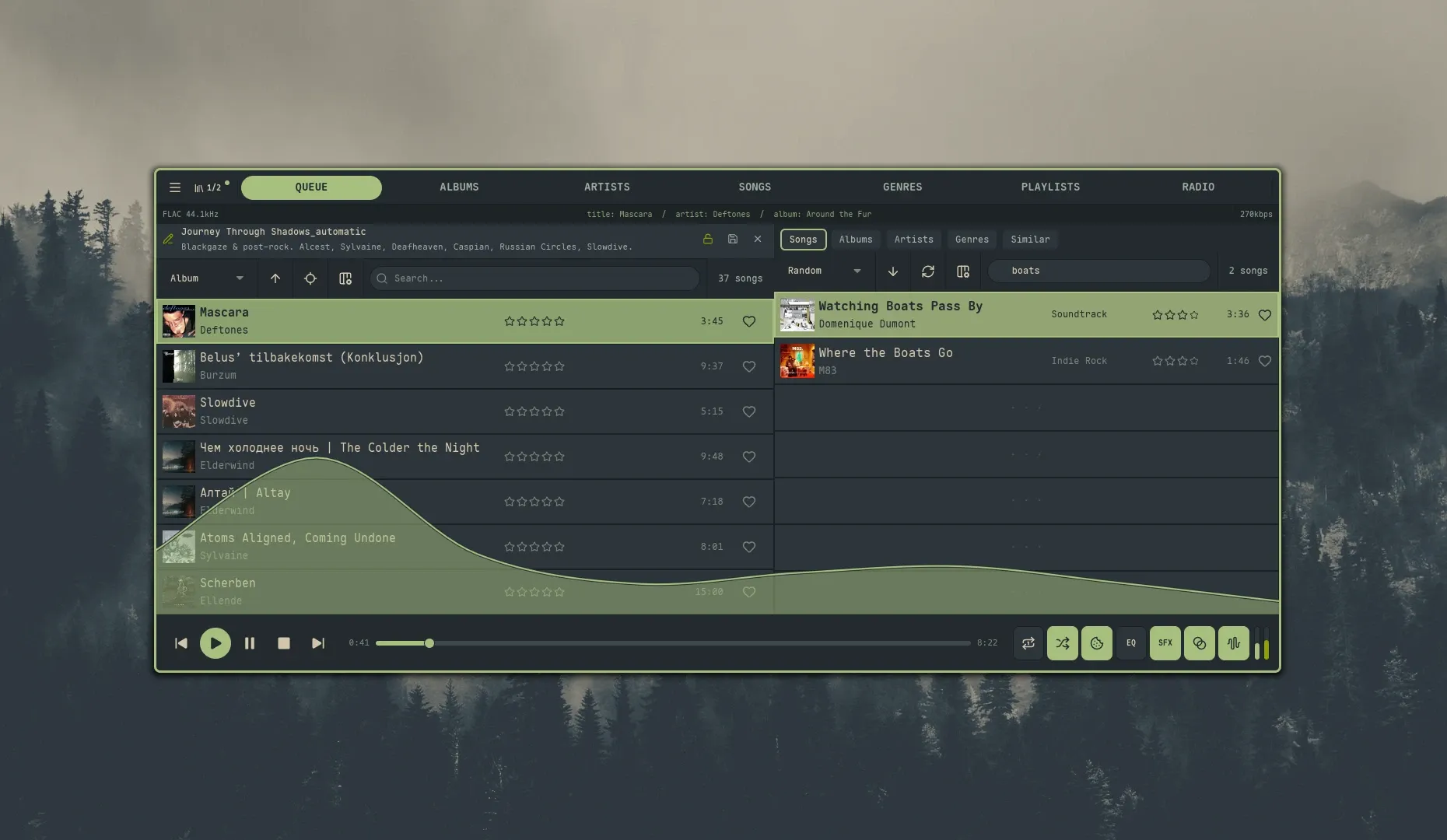
Edit Playlist opens a split layout: the queue (now containing the playlist’s tracks) is on the left, and the Library Browser is on the right. From here you can:
- Reorder tracks with drag-and-drop — same behavior as the queue, down to dropping a track past the last row to append it at the end
- Add tracks by dragging from the Library Browser
- Remove tracks the same way you’d remove them from the queue
- Edit the playlist name and comment inline
- Open Get Info on any track — from its right-click menu or by clicking its title
- Toggle public/private with the lock button in the edit bar — open lock = public, closed lock = private
The edit bar’s eyebrow reads EDITING PLAYLIST, gaining a • UNSAVED marker whenever changes are pending. When you’re done, click the save (disk) icon to write the changes back. If you exit (via the discard button or Escape) with changes pending, Nokkvi discards them and shows a toast confirming the discard.
The cover
Section titled “The cover”The edit bar carries the playlist’s cover as a small thumbnail — a custom upload if you’ve set one, otherwise the 2×2 album quad, otherwise a disc placeholder. Click it to set custom art; a Reset label appears under it (once the playlist is saved) to clear back to the quad. Setting a cover needs a saved playlist, so on a brand-new one you haven’t saved yet, Nokkvi asks you to save the playlist first.
Limitations
Section titled “Limitations”- M3U / PLS export is not supported — playlists live entirely on the server.
Smart playlists are supported — see the Smart Playlists guide.